

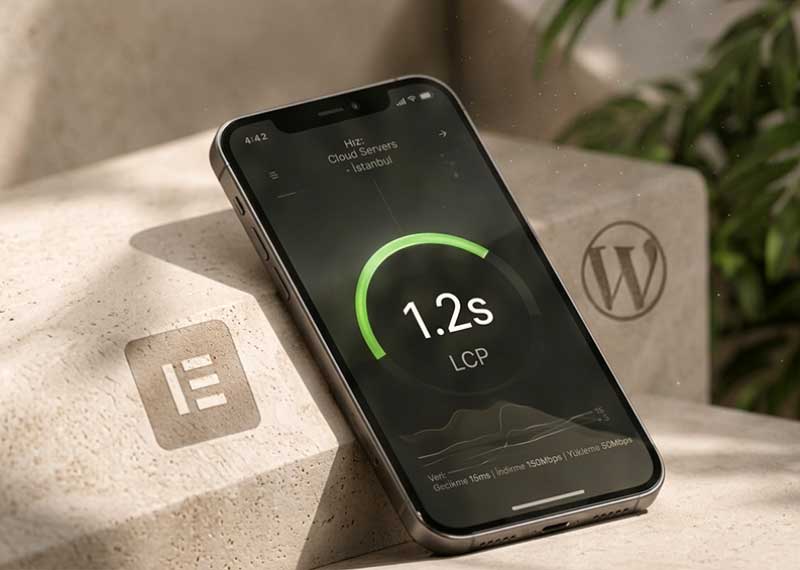
Improving Elementor mobile LCP is essential when a website feels fast on desktop but performs poorly on mobile devices.
This is a common problem with Elementor websites. Large hero images, background images, web fonts, animations and unnecessary scripts can delay the Largest Contentful Paint (LCP), even when the rest of the page is reasonably well optimized.
While working on Elementor websites, I found that improving mobile LCP was not about installing another performance plugin. The biggest improvements came from identifying exactly what the browser was waiting for during the first screen load.
What Is LCP?
Largest Contentful Paint is one of Google’s Core Web Vitals.
It measures how long it takes for the largest visible element in the initial viewport to appear. On a typical Elementor homepage, this is often:
- a hero image,
- a large heading,
- a background image,
- or a large content block.
For a good user experience, Google recommends an LCP of 2.5 seconds or less.
The important point is that LCP is not simply a measurement of the entire website’s speed. It focuses on what the visitor sees during the initial page load.
1. Start With the Hero Section
The hero section is the first place I check when mobile LCP is poor.
Elementor designs often use large desktop images as container backgrounds. They may look excellent, but downloading a large image before the main content can be displayed creates an unnecessary delay on mobile devices.
My approach is simple:
Use an appropriately sized image for the actual space in which it will be displayed.
I also convert large photographic images to a modern format such as WebP and avoid using oversized source files when they provide no visible improvement.
The goal is not to destroy image quality.
The goal is to stop sending pixels that the visitor’s screen will never use.
2. Be Careful With Elementor Background Images
Background images are convenient in Elementor, but convenience does not always equal performance.
When an important above-the-fold image is implemented as a CSS background, the browser may discover it later than a normal HTML image.
For an important LCP image, I therefore consider whether the image really needs to be a background.
If it is an important visual element rather than decoration, using an actual image element can sometimes give the browser a better opportunity to discover and prioritize it earlier.
This decision depends on the design, so I do not automatically replace every background image.

3. Remove Unnecessary Mobile Animations
Animations can make a website feel polished, but the first screen is not the place to demonstrate every animation Elementor provides.
Entrance animations, motion effects and delayed transitions can make important content appear later than necessary.
For mobile layouts, I prefer to keep the first viewport simple.
If an animation does not improve the user’s understanding of the page, I remove it.
A fast, stable hero section is usually more valuable than a heading that elegantly fades into view half a second later.
4. Optimize Fonts
Fonts are another easily overlooked source of delay.
A design may use several font families and multiple weights even though the first screen needs only a small subset of them.
I try to keep typography deliberately limited and load only the font weights actually used by the design.
When appropriate, important fonts can also be preloaded and configured with font-display: swap.
The principle is the same as image optimization:
Do not make the browser download resources that the first screen does not need.
5. Do Not Assume a Cache Plugin Will Fix LCP
Caching is useful, but it is not a substitute for fixing the page itself.
A caching or optimization plugin cannot completely compensate for a 1 MB hero image, unnecessary JavaScript, several font files and multiple entrance animations.
In some projects, aggressive optimization settings can even introduce layout shifts, delayed rendering or compatibility problems.
I prefer to optimize the page structure first and then use caching as an additional layer.
The order matters:
Fix the page first. Optimize delivery second.
6. Test Mobile Separately
Desktop performance can be misleading.
A page that loads almost instantly on a fast desktop connection may behave very differently on a mobile device with limited CPU performance and a slower network.
That is why I test mobile performance separately and pay particular attention to:
- the LCP element,
- image size,
- resource loading order,
- render-blocking resources,
- font loading,
- layout shifts,
- and unnecessary JavaScript.
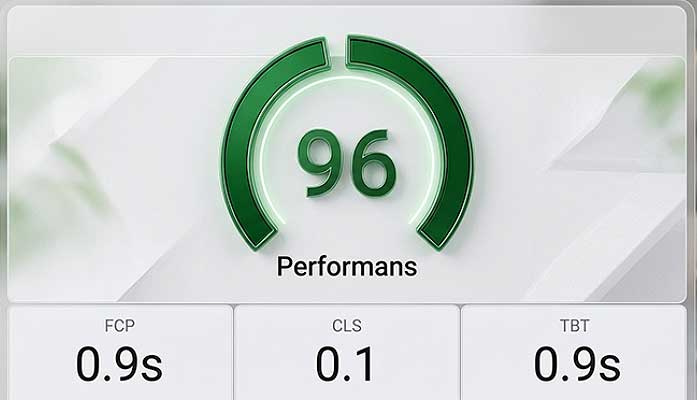
The score itself is useful, but identifying the reason behind the score is more important.
7. Change One Thing at a Time
Performance optimization can quickly become confusing if several settings are changed simultaneously.
I prefer a simple workflow:
Test → identify the bottleneck → make one meaningful change → clear the relevant cache → test again.
This makes it much easier to understand which optimization actually produced the improvement.
Otherwise, a better score may appear without knowing why — or a new problem may be introduced without knowing which change caused it.
The Result
Improving mobile LCP on an Elementor website usually does not require rebuilding the entire site.
The biggest improvements often come from a few deliberate decisions:
- reducing the weight of the hero section,
- prioritizing the real LCP element,
- optimizing images,
- simplifying mobile animations,
- reducing unnecessary font resources,
- and removing resources that are not needed during the initial render.
The most important lesson I have learned is simple:
Performance optimization should begin with the page itself, not with the optimization plugin.
A well-built Elementor page should already be reasonably fast before caching and optimization tools are added.
That approach produces websites that are not only faster, but also easier to maintain and less dependent on aggressive performance plugins.